Welcome to DRS!
Here are your next steps:
Welcome to the Detailer Revenue System App!! This is your first step to being able to generate more sales in less time!!
Initially there might seem like a lot to learn, but don't worry, it's not as much as it seems!!
The below will outline the most important areas for you to focus on to get the most out of DRS>
WATCH THIS WELCOME VIDEO BY DANNY CLARKE
Step 1. Setup Your DRS Account
The first step is to setup your account. The areas that need to be setup are:
Enter your business details
Connect DRS to your email so that your emails sync to DRS
Integrate DRS with you Google My Business, Facebook & Instagram Accounts
Setup your phone 'Regulatory Bundle' so that we can send text alerts to your customers
Setup the DRS social planner
For the full 'Account Setup Guide' use the link below.
WATCH THIS WELCOME VIDEO BY DANNY CLARKE
Step 2. Learn how to use DRS
Take the time to learn how to use DRS. It might seem like a lot to take in to begin with, but in a short amount of time things will start to feel easy.
Take the time to read through the guides and watch the videos. Then start using it each day and it will naturally become part of your working day!
WATCH THIS WELCOME VIDEO BY DANNY CLARKE
Step 3. Enter contacts and leads into DRS
Contacts that come from Facebook lead forms and website form (if it has been integrated) will be entered into DRS automatically.
If you get a lead via a phone call or other offline source you will need to enter it manually. Keeping an up to date record of your contacts will pay off as it will allow you to market and communicate to them maximising your marketing return on investment.
WATCH THIS WELCOME VIDEO BY DANNY CLARKE
Step 4. Reply to leads and customers
DRS provides a centralised inbox which feeds in email, SMS and social channels. This allows you to respond to all customer messages from one place.
WATCH THIS WELCOME VIDEO BY DANNY CLARKE
5. Enter and update your opportunities
Depending on certain actions being taken some opportunities will be created automatically. The status of the opportunities will also be updated automatically.
Even though this is the case, in some cases (like if a customer has told he is ready to book) the opportunity needs to be updated manually. This is important, as if it is not done the customer won't receive the correct automated communications.
Below is an explanation of the Opportunity stages:
New Enquiry: These are brand new leads and enquiries
Follow-up 1: This outlines who needs to be followed up with for the first time
Follow-up 2: Contacts that weren't reached on the first attempt will fall into 'Follow-up 2'
Follow-up 3: Contacts that weren't reached on the second attempt will fall into 'Follow-up 3'
Follow-up 4: Contacts that weren't reached on the third attempt will fall into 'Follow-up 4'
Appointment Requested: These are contacts that have requested an appointment. These are hot opportunities!
Consultation Call booked: These are contacts that have booked a consultancy call
Car Inspection Booked: These are contacts that have a car inspection booked
Quote Sent: Contacts that have had a quote sent to them
Cancellation: Contacts that cancelled and need rescheduling
Needs Allocation: Contacts where you need to outline whether they showed up or not.
No Show: Contacts that didn't show up for their booking and need to be rescheduled.
Deposit Requested: Contacts where a deposit has been requested and needs to be paid
Booking Confirmed: These are confirmed bookings
Show-up: Contacts that showed up for their booking
Receiving Automated Review Requests
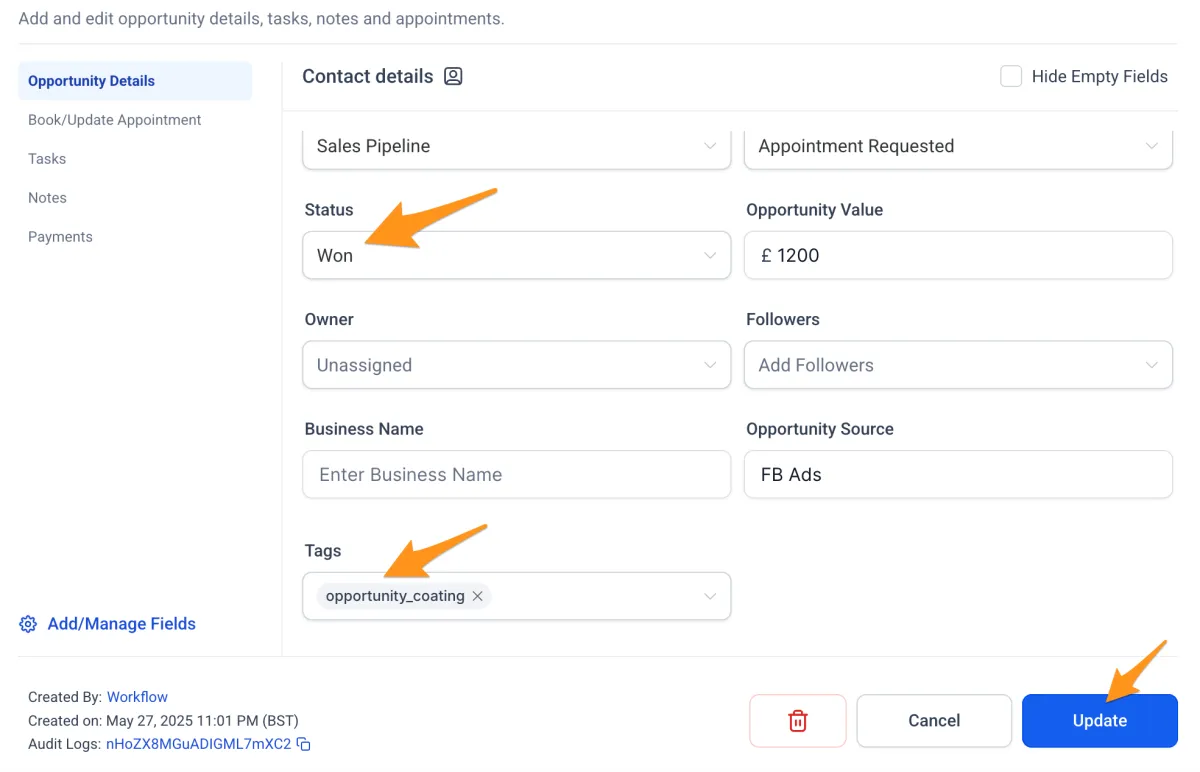
When you have completed a service mark the status of the opportunity as 'Won'. This will trigger the automated review request flow.
Trigger the Coating Decon Service Reminders
After a ceramic coating has been supplied you might want to remind customers to book there coating maintenance service. To do this add the tag 'opportunity_coating', and then update the status of the opportunity to 'won'
WATCH THIS WELCOME VIDEO BY DANNY CLARKE
6. Enter bookings into calendars
The Calendars section allows you to enter and view all the various customer appointments. It is important to keep this up to date as creating a booking will trigger flows like the booking confirmation and reminder emails and SMS'.
Below is an explanation of the various calendars available:
General Calendar
Use this calendar to schedule in work or any other appointments you would like to be reminded of. We will look at this calendar to see where you have availability. This calendar will not trigger any workflows.
Consultation Call
Use this to schedule consultation call with potential customers. These bookings will trigger appointment confirmation and reminder emails and SMS' to the customer.
Paint Assessment
Use this to schedule paint assessment appointments with potential customers. These bookings will trigger appointment confirmation and reminder emails and SMS' to the customer.
Car Drop Off
Use this to schedule when a customer should drop their car off for a service. These bookings will trigger appointment confirmation and reminder emails and SMS' to the customer.
Coating Booking Car Drop Off (1 day)
Some detailers like to allow their customers to book in for a 1 day coating service. This calendar can be used to give customers a booking link and allow them to choose a date that works best for them.
WATCH THIS WELCOME VIDEO BY DANNY CLARKE
7. Complete the appointment show / no-show forms
After a booked appointment you will receive an email asking you to state whether the customer showed up or not. This is important to complete as if you outline that the customer didn't show, the contact will be passed into a 'no show' automation asking them to reschedule.
If you don't complete the form, the appointment will be marked as 'showed' by default.
The form will also allow you to enter comments from the appointment which will be attached to the contacts notes.
WATCH THIS WELCOME VIDEO BY DANNY CLARKE
8. Post to Google My Business & social profiles
Everyone knows the importance of posting to Google My Business and social profiles regularly. Everyone also knows how much work and time this can take!
DRS simplifies the process and saves hours of time by posting to multiple profiles at once and having posts written by the AI content generator.
WATCH THIS WELCOME VIDEO BY DANNY CLARKE
9. Use the Newsletter Flow
When a customer makes an enquiry, they might not convert immediately. The important thing to remember is that this contact might become a customer in the future. To maximise the chances of this happening, you need to stay in communication, build trust, and show the customer the benefits your services can bring.
The 'Nurture_Newsletter Flow_2024-05' automation will send an email to your contacts automatically every month. Watch the video below to find out more.
To trigger this flow add the tag 'flow_newsletter' to a contact. Before using this flow you can read all the emails to make sure you are happy with the content.
WATCH THIS WELCOME VIDEO BY DANNY CLARKE